Google Pay
Overview
Introduction
Google Pay is a payment method which allows to process payments in different currencies by using Google Pay services in different regions. This method supports one-time one-step purchases and refunds.
This article provides information about working with the Google Pay method: general insights are presented in the Overview section, while information about the actions required to process payments and perform other actions is presented in the sections that follow.
General information
| Payment method type | Digital wallet payments |
|---|---|
| Payment instruments | payments cards |
| Countries and regions | the list is available at the link |
| Payment currencies | all currencies supported by American Express, Mastercard, and Visa payment systems in supported regions |
| Currency conversion | on the Orchid side |
| One-time purchases | + |
| Credential-on-file purchases | – |
| Payouts | – |
| Chargebacks | + |
| Special considerations |
|
| Obtaining access to the payment method and access fee | refer to your Orchid key account manager |
Processing scenarios
To perform a purchases by using the Google Pay method, a customer needs to register a payment card in Google Payapp at one of the supported devices first. Then to perform a purchase, it is required to request the tokenized card details from the Google Pay service by using Google Pay API. When processing a purchase by using Payment Page, Orchid establishes all interactions with the Google Pay service.
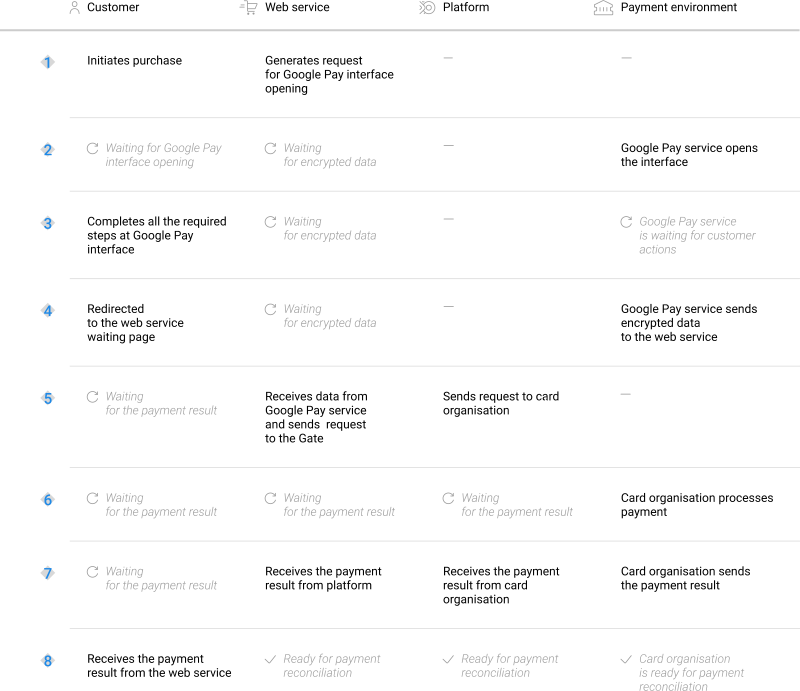
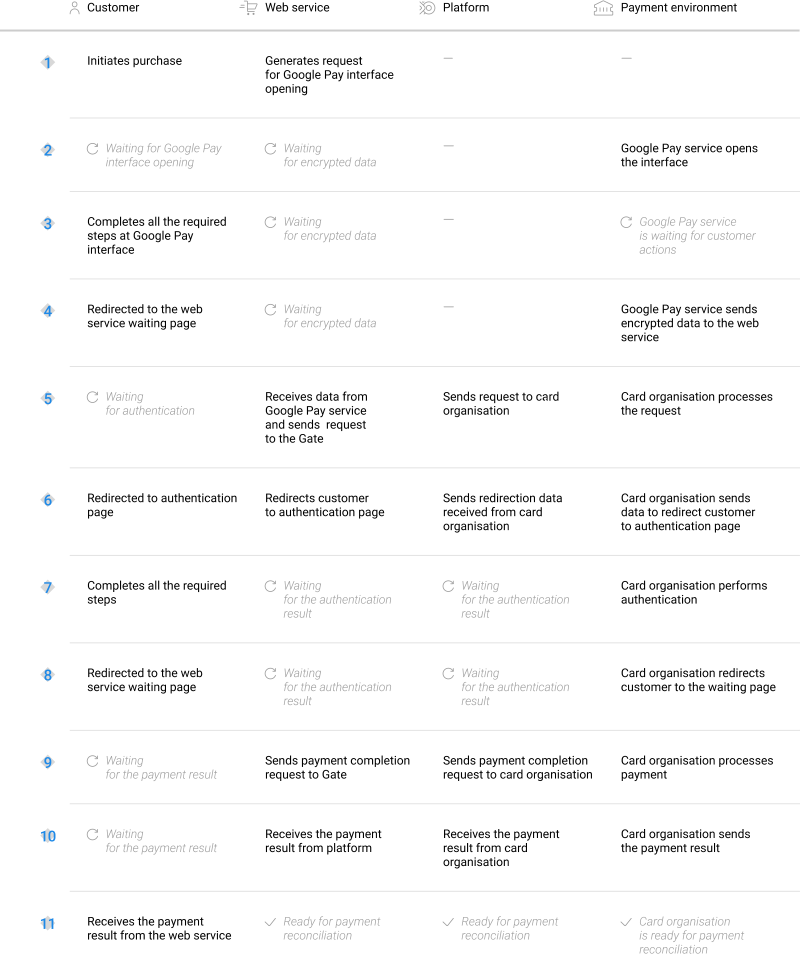
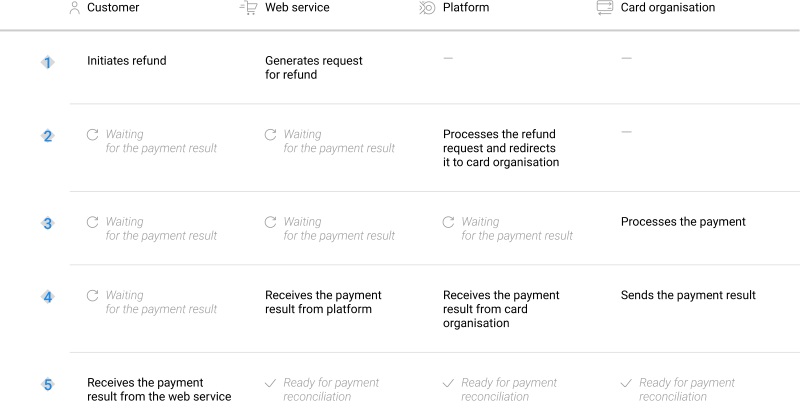
Scenarios for performing operations via the main interfaces of the payment platform correspond to those presented in the diagrams.
One-time purchases by using Payment Page
General information
To process a purchase through Payment Page by using the Google Pay method, the merchant's web service is required to send a request with all required parameters and signature to the Orchid URL and receive a callback with the result. In case of a two-step purchase, it might be required, at a later point, to confirm the capture of the held funds. The full sequence and special aspects of one-step purchase processing are provided below.
- A customer initiates a purchase in the web service.
- The web service sends the request for opening Payment Page to the specified Orchid URL.
- The request for opening Payment Page is sent to the payment platform.
- The payment platform receives the request and validates the required parameters and signature.
- Payment Page is generated based on the project and request parameters.
- Payment Page is displayed to the customer.
- The customer selects the payment card method and clicks the
Google Paybutton. If theGoogle Paybutton is displaying among other payment methods on the first page, the customer just clicks the button. - The payment platform receives the request for opening the Google Pay app or the Google Pay payment form.
- The payment platform sends the request for opening the payment form with the customer masked card details stored in the Google account to the Google Pay service.
- The Google Pay service processes the request and generates a payment form with the list of cards available for the customer.
- The Google Pay app or form is displayed to the customer with masked card details:
- when processing a purchase on web sites by using mobile Google Chrome or in apps supporting payments with Google Pay, the Google Pay app opens
- in other cases the Google Pay form is displayed in any mobile or desktop browser
- The customer selects the specific card and confirms the purchase.
- The Google Pay service redirects the customer to Payment Page
- The customer data is processed on the Google Pay service side.
- The Google Pay service sends the token of the encrypted card details to the payment platform.
- The payment platform sends the payment request to the card organisation service.
- The purchase is processed in the card organisation service.
- The card organisation service sends a notification about the result to the payment platform.
- The payment platform sends the payment result callback to the web service.
- The payment platform sends the result information to Payment Page.
- The result information is displayed to the customer on Payment Page.
In case of a two-step purchase, the process of placing the authorisation hold via Payment Page using the Google Pay method is identical to the workflow sequence of a one-step purchase, with the exception that instead of an immediate debiting of funds an authorisation hold is initiated and executed.
Information about the formats of requests and callbacks used for processing payments by using the Google Pay method via Payment Page is presented further in this section; general information about working with the Payment Page API is presented in Interaction concepts.
Request format
There are several things you need to consider when sending purchase requests by using the Google Pay method:
- The following parameters required for any payment must be specified:
project_id—project identifier obtained from Orchid during integrationpayment_id—payment identifier unique within the projectpayment_currency—payment currency code in the ISO-4217 alpha-3 formatpayment_amount—payment amount in the smallest currency unitcustomer_id—customer identifier unique within the project
- The following parameters required for any payment must be specified:
project_id,payment_id,payment_currency,payment_amount,customer_id. - To specify the type of purchase that is different from the default one set for the specific project, pass
sale(for immediate withdrawal of funds during one-step purchase processing) orauth(to place an authorisation hold during two-step purchase processing) in theoperation_typeparameter. - You can choose the way of displaying the
Google Paybutton on Payment Page. There are several ways:- Displaying the
Google Paybutton on the page for entering card details. The customer must first select the Bank cards method on the page for selection a payment method among other payment methods. This option is set by default. - Displaying the
Google Paybutton on the page for selection a payment method among other payment methods. To set this option, contact Orchid technical support. - Displaying the
Google Paybutton on the page for entering card details by passing the page for the payment method selection. The customer does not need to select the Bank cards method. To set this option, pass the codecardin theforce_payment_methodparameter. - Displaying only the
Google Paybutton on Payment Page. To set this option, pass the codegoogle_pay_hostin theforce_payment_methodparameter.
- Displaying the
- Additionally, any other parameters available for working with Payment Page can be used (details).
- After all target parameters are specified, generate a signature (details).
Thus, a correct request for opening the payment form using the Google Pay method must contain the project identifier, basic payment information (identifier, amount, and currency code), customer identifier and signature.
{
   "project_id": 120,
   "payment_id": "580",
   "payment_amount": 1000,
   "payment_currency": "USD",
   "customer_id": "customer1",
   "signature": "kUi2x9dKHAVNU0FYldOcZzUCwX6R\/ekpZhkIQg=="
}
{
   "project_id": 120,
   "payment_id": "580",
   "payment_amount": 1000,
   "payment_currency": "USD",
   "customer_id": "customer1",
   "signature": "kUi2x9dKHAVNU0FYldOcZzUCwX6R\/ekpZhkIQg=="
}
Callback format
In the Google Pay method, the callbacks that deliver purchase results use the standard format described in Handling callbacks.
Note that unlike other payment methods, in the Google Pay method, callbacks containing information about purchases processed with the inclusion of the 3‑D Secure authentication procedure contain the ECI indicator code in the operation.eci parameter (details); also in this case the service code of the payment method is specified as card in the payment.method parameter. At the same time callbacks containing information about purchases processed without the inclusion of the 3‑D Secure authentication procedure do not contain the ECI indicator code and the service code can be specified as card or etoken-google.
The following is the example of a callback with an information about a 1,000.00 USD purchase made in the 688 project by using 431422******0056 payment card without 3‑D Secure authentication.
 {
        "project_id": 688,
        "payment": {
            "id": "TEST_154356886034722221",
            "type": "purchase",
            "status": "success",
            "date": "2019-04-11T11:22:36+0000",
            "method": "etoken-google",
            "sum": {
                "amount": 100000,
                "currency": "USD"
            },
            "description": "TEST_154356886034722221"
        },
        "account": {
            "number": "431422******0056",
            "token": :"a989f5ef7ab159dd5c33260e4201d13dbfcdc75"
        },
        "operation": {
            "id": 2000015,
            "type": "sale",
            "status": "success",
            "date": "2019-04-11T11:22:36+0000",
            "created_date": "2019-04-11T11:22:20+0000",
            "request_id": "2b36e68d4d9fc8839d5d65ee6273dfdebbd",
            "sum_initial": {
                "amount": 100000,
                "currency": "USD"
            },
            "sum_converted": {
                "amount": 100000,
                "currency": "USD"
            },
            "provider": {
                "id": 1381,
                "payment_id": "d1b9-3qfl-9rns-1ql9aokzi2v8",
                "date": "2019-04-11T11:22:34+0000",
                "auth_code": ""
            },
            "code": "0",
            "message": "Success"
        },
        "signature": "Xkf7nUDleg8wcLltroCvNOMq751VtZcgrz6Nax...=="
    }
The following is the example of a callback with an information about a 1,000.00 USD purchase made in the 688 project by using 431422******0056 payment card with 3‑D Secure authentication.
 {
        "project_id": 688,
        "payment": {
            "id": "TEST_154356886034722221",
            "type": "purchase",
            "status": "success",
            "date": "2019-04-11T11:22:36+0000",
            "method": "etoken-google",
            "sum": {
                "amount": 100000,
                "currency": "USD"
            },
            "description": "TEST_154356886034722221"
        },
        "account": {
            "number": "431422******0056",
            "token": :"a989f5ef7ab159dd5c33260e4201d13dbfcdc75"
        },
        "operation": {
            "id": 2000015,
            "type": "sale",
            "status": "success",
            "date": "2019-04-11T11:22:36+0000",
            "created_date": "2019-04-11T11:22:20+0000",
            "request_id": "2b36e68d4d9fc8839d5d65ee6273dfdebbd",
            "sum_initial": {
                "amount": 100000,
                "currency": "USD"
            },
            "sum_converted": {
                "amount": 100000,
                "currency": "USD"
            },
            "provider": {
                "id": 1381,
                "payment_id": "d1b9-3qfl-9rns-1ql9aokzi2v8",
                "date": "2019-04-11T11:22:34+0000",
                "auth_code": ""
            },
            "code": "0",
            "message": "Success",
            "eci": "02"
        },
        "signature": "Xkf7nUDleg8wcLltroCvNOMq751VtZcgrz6Nax...=="
    }
The following is the example of a callback for a declined purchase with 3‑D Secure authentication.
{
        "project_id": 688,
        "payment": {
            "id": "TEST_154356886034722222",
            "type": "purchase",
            "status": "decline",
            "date": "2019-04-11T11:24:51+0000",
            "method": "etoken-google",
            "sum": {
                "amount": 100100,
                "currency": "USD"
            },
            "description": "TEST_154356886034722222"
        },
        "account": {
            "number": "431422******0056"
        },
        "operation": {
            "id": 2000000383,
            "type": "sale",
            "status": "decline",
            "date": "2019-04-11T11:24:51+0000",
            "created_date": "2019-04-11T11:24:35+0000",
            "request_id": "0eef294c20a7d72abd0fb20f3753ee674b51fbe",
            "sum_initial": {
                "amount": 100100,
                "currency": "USD"
            },
            "sum_converted": {
                "amount": 100100,
                "currency": "USD"
            },
            "provider": {
                "id": 1381,
                "payment_id": "1rvp-fc2k-cnp9-h41ocauwn6fr",
                "date": "2019-04-11T11:24:50+0000",
                "auth_code": ""
            },
            "code": "20000",
            "message": "General decline",
            "eci": "00"
        },
        "signature": "cQbMiD0pON9eJc5ZugNK0iT5SwHc0feItZRcAB...=="
    }
Useful links
The following articles can be useful when implementing purchases via Payment Page:
- Interaction concepts—about the interaction with the payment platform by using Payment Page.
- Signature generation and verification—about the procedure of generating and verifying signatures in requests and callbacks.
- Payment processing—about the types, processing models, and possible statuses of supported payments and operations.
- One-time one-step purchase—about processing of one-time one-step purchases by using Payment Page.
- Handling operation processing information—about error and response codes that are used in the payment platform to record information about performing of operations.
One-time purchases by using Gate
General information
In order to process purchases by using the Google Pay method via Gate, the merchant must adhere to the Google Pay API Acceptable Use Policy and accept the terms defined in the Google Pay API Terms of Service. At the same time, the web service is required to the following:
- Perform the necessary setup required by Google and follow the integration checklist
- Apply for the registration in Google service and receive the Google merchant ID
- Fill in the Google Pay API integration support request form and take the next steps in accordance with the communications from Google. It may be necessary to provide additional integration information to Google
You should also keep in mind that payments using the Google Pay method can be processed in accordance with two scenarios:
- via the Google Pay app (when installed on the customer's compatible device)
- without using the Google Pay app, like a typical card payment (when the app is not installed on the customer's device or the device is not compatible with it).
In the first case, the purchase is processed without 3‑D Secure authentication, and in the second case, it can be carried out both with and without the authentication. To resolve such situations on the web service side, it is necessary to configure a response to callbacks with information about customer redirection and support the two possible scenarios.
When processing a purchase in the Google Pay method without 3‑D Secure authentication, the merchant web service is required to do the following:
- Integrate the
Google Paybutton following the Google Pay brand guidelines and implement the receiving of the token of customer card from Google Pay. - Send a request to Google Pay service for payment form or app opening with the list of saved cards that are available to a customer.
- Send a request to Google Pay service for receiving the token of the card selected by a customer.
- Send a request with all the required parameters and signature to the Orchid URL.
- Receive the final callback with the payment result from the payment platform.
When processing a purchase in the Google Pay method with 3‑D Secure, the merchant web service is required to do the following:
- Integrate the
Google Paybutton following the Google Pay brand guidelines and implement the receiving of the token of customer card from Google Pay. - Send a request to Google Pay service for payment form or app opening with the list of saved cards that are available to a customer.
- Send a request to Google Pay service for receiving the token of the card selected by a customer.
- Send a request with all the required parameters and signature to the Orchid URL.
- Get the callback from the platform with data to redirect the customer to the authentication page.
- Redirect the customer to the authentication page to pass 3‑D Secure.
- Send the payment completion request with the result of authentication to the payment platform.
- Receive the final callback with the payment result from the payment platform.
The full sequence and special aspects of purchase processing are provided below.
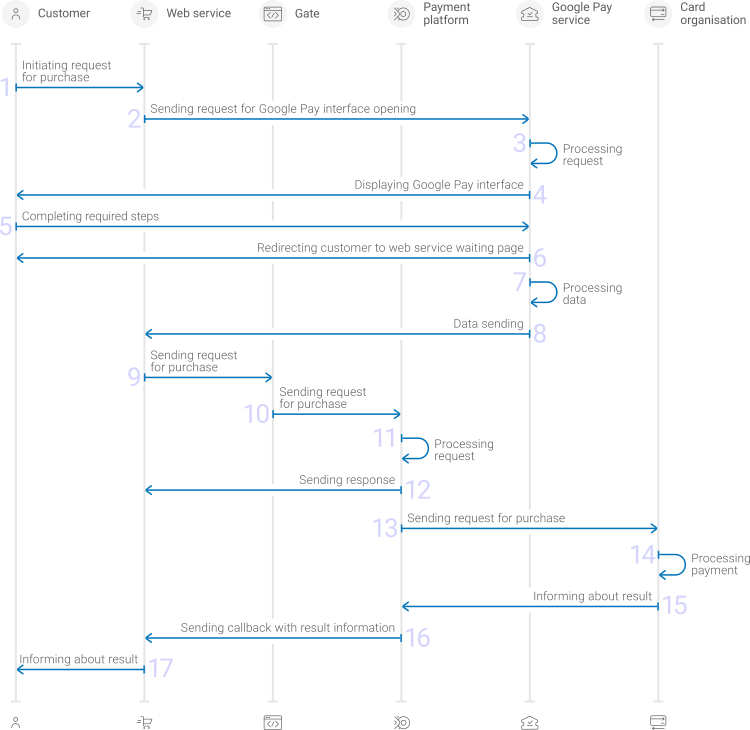
- A customer initiates a purchase by using the Google Pay method in the web service.
- The request for opening the Google Pay app or the Google Pay payment form that display masked card details stored in the customer Google account is sent to the Google Pay service.
- The Google Pay service processes the request and generates a payment form with the list of cards available for the customer.
- When processing a purchase on web sites by using mobile Google Chrome or in apps supporting payments with Google Pay, the Google Pay app opens with masked card details is displayed to the customer.
- The customer selects the specific card and confirms the purchase.
- The Google Pay service redirects the customer to the result loading page in the merchant web service.
- The customer data is processed on the Google Pay service side.
- The Google Pay service sends the token that represents encrypted card details.
- The web service sends the request for processing the purchase through Gate by using the card token received from Google Pay to the specified Orchid URL.
- The payment platform receives the request for processing the purchase by using Gate.
- The payment platform validates the required parameters and signature in the request.
- The payment platform sends the response to the web service with information about the receipt of the request and its validity (details).
- The payment platform performs further processing of the request (with parameter consistency check) and sends it to the card organisation service.
- The payment is processed on the card organisation side.
- The card organisation service sends the payment result notification to the payment platform.
- The payment platform sends the payment result callback to the web service.
- The customer receives the payment result information from the web service.
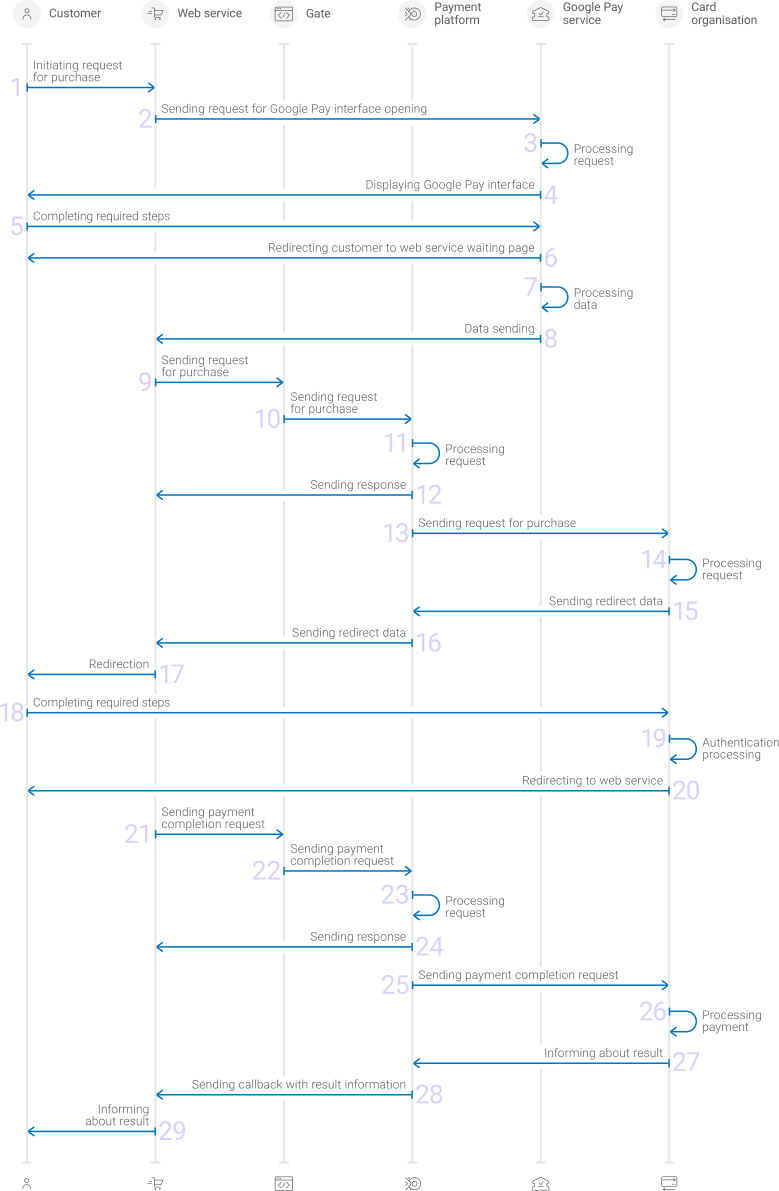
- A customer initiates a purchase by using the Google Pay method in the web service.
- The request for opening the Google Pay app or the Google Pay payment form that display masked card details stored in the customer Google account is sent to the Google Pay service.
- The Google Pay service processes the request and generates a payment form with the list of cards available for the customer.
- When processing a purchase using devises that do not support payments with Google Pay the payment form of Google Pay is displayed to the customer in any mobile or desktop browser with masked card details.
- The customer selects the specific card and confirms the purchase.
- The Google Pay service redirects the customer to the result loading page in the merchant web service.
- The customer data is processed on the Google Pay service side.
- The Google Pay service sends the token that represents encrypted card details.
- The web service sends the request for processing the purchase through Gate by using the card token received from the Google Pay service to the specified Orchid URL.
- The payment platform receives the request for processing the purchase by using Gate.
- The payment platform validates the required parameters and signature in the request. If the purchase is performed from the web browser and not from the Google Pay app, the 3‑D Secure authentication is also performed.
- The payment platform sends the response to the web service with information about the receipt of the request and its validity (details).
- The payment platform performs further processing of the request (with parameter consistency check) and sends it to the card organisation service.
- The request is processed and the necessity of 3‑D Secure authentication is checked on the card organisation side.
- The data for redirection of the customer to the authentication page is sent to the payment platform from card organisation.
- The payment platform sends the callback with the redirection data to the web service. Further information on the formats for callbacks with the data for redirection of the customer to the authentication page is provided in the corresponding section 3‑D Secure authentication.
- Merchant web service redirects the customer to the authentication page.
- Customer is redirected to the authentication page and passes the 3‑D Secure authentication.
- Card organisation service performs customer authentication.
- Customer is redirected to the web service loading page.
- The web service sends the payment completion request through Gate to the specified Orchid URL.
- The payment platform receives the payment completion request.
- The payment platform validates the required parameters and signature in the request.
- The payment platform sends the response to the web service with information about the receipt of the request and its validity (details).
- The payment platform performs further processing of the request (with parameter consistency check) and sends it to the card organisation service.
- The payment is processed on the card organisation service side.
- The card organisation service sends the payment result notification to the payment platform.
- The payment platform sends the payment result callback to the web service.
- The customer receives the payment result information from the web service.
Information about the formats of requests and callbacks used for interacting with the Orchid payment platform to process payments by using the Google Pay method via Gate is presented further in this section. General information about working with the Gate API is presented in Interaction concepts.
Request format
There are several things you need to consider when sending requests for starting the payment session by using the Google Pay method:
- To initiate each purchase, send a separate POST request to the /v2/payment/googlepay/sale:
- Each request must include the following objects and parameters:
- Object
general—general purchase information:project_id—project identifier obtained from Orchid during integrationpayment_id—payment identifier unique within the projectsignature—request signature generated after all required parameters are specified (details—in the Signature generation and verification) (details)
- Object
payment—payment information:amount—payment amount in the smallest currency unitcurrency—payment currency code in the ISO-4217 alpha-3 format
- Object
customer—customer information:id—customer identifier unique within the projectip_address—customer IP address relevant for the initiated payment
- Object
etoken— information about token that represents card details received from the Google Pay service:token—token with card encrypted details
- Object
- Other mandatory parameters may be required. It depends on the tokenization type that is used in a request to the Google Pay service. For information about what type of tokenization you need to perform purchase in a project, contact Orchid technical support.
To use
PAYMENT_GATEWAYtokenization type, customer email is required to specify in theemailparameter of thecustomerobject.To use
DIRECTtokenization type, the following parameters must be specified in theetokenobject:google_merchant_id—merchant ID in the Google Pay servicegoogle_tokenization_type—theDIRECTtokenization type
- Additionally, any other parameters included in the specification can be used.
Thus, a correct purchase request by using the Google Pay method with the PAYMENT_GATEWAY tokenization type must contain the project identifier, basic payment information (identifier, amount, and currency code), customer identifier, IP address and email, as well as signature.
{
  "general": {
    "project_id": 626,
    "payment_id": "ORDER_ID_gev_S01_0.20111200_1554473913",
    "signature": "xWOlMksKctAKeYADt8W6F98D/ZFgyNqOYw...=="
  },
  "customer": {
    "id": "123",
    "email": "googlepay@example.com",
    "ip_address": "192.0.2.0"
  },
  "payment": {
    "amount": 10000,
    "currency": "USD"
  },
  "etoken": {
    "token":  "..." // as received from Google Pay
  }
}
{
  "general": {
    "project_id": 626,
    "payment_id": "ORDER_ID_gev_S01_0.20111200_1554473913",
    "signature": "xWOlMksKctAKeYADt8W6F98D/ZFgyNqOYw...=="
  },
  "customer": {
    "id": "123",
    "email": "googlepay@example.com",
    "ip_address": "192.0.2.0"
  },
  "payment": {
    "amount": 10000,
    "currency": "USD"
  },
  "etoken": {
    "token":  "..." // as received from Google Pay
  }
}
Thus, a correct purchase request by using the Google Pay method with the DIRECT tokenization type must contain the project identifier, basic payment information (identifier, amount, and currency code), customer identifier and IP address, merchant ID and tokenization type, as well as signature.
{
  "general": {
    "project_id": 688,
    "payment_id": "ORDER_89218100_1554981739",
    "signature": "aRZiZZc0w5RVnuCxC7KSm50Pfwsj/8fqy2XlAJ...=="
  },
  "customer": {
    "id": "123",
    "ip_address": "192.0.2.0"
  },
  "payment": {
    "amount": 10000,
    "currency": "USD"
  },
  "etoken": {
    "token": "...", // as it is received from Google Pay
    "google_merchant_id": "12345678901234567890",
    "google_tokenization_type": "DIRECT"
  }
}
{
  "general": {
    "project_id": 688,
    "payment_id": "ORDER_89218100_1554981739",
    "signature": "aRZiZZc0w5RVnuCxC7KSm50Pfwsj/8fqy2XlAJ...=="
  },
  "customer": {
    "id": "123",
    "ip_address": "192.0.2.0"
  },
  "payment": {
    "amount": 10000,
    "currency": "USD"
  },
  "etoken": {
    "token": "...", // as it is received from Google Pay
    "google_merchant_id": "12345678901234567890",
    "google_tokenization_type": "DIRECT"
  }
}
Payment completion request format
There are several things you must consider when using payment completion requests in the Google Pay method:
- To complete each purchase, send a separate POST request to the /v2/payment/card/3ds_result endpoint.
- Each request must include the following objects and parameters:
- Object
general—general purchase information:project_id—project identifier obtained from Orchid during integrationpayment_id—payment identifier unique within the projectsignature—request signature generated after all required parameters are specified (details—in the Signature generation and verification) (details)
- One of the following parameters:
pares—the 3‑D Secure authentication result you obtain from the payment platformcres—the 3‑D Secure authentication result you obtain from the Access Control Server
- Object
Thus, a correct payment completion request by using the Google Pay method must contain the project and payment identifiers, authentication result, as well as signature.
{
  "general": {
    "project_id": 580,
    "payment_id": "TEST_15427033321774",
    "signature": "96c+hWk1zweuGKwDJXZw7ew6ow3RpGYv4U...=="
  },
  "pares": "eJzVWdfvq8iy/iujOY/1...Dfn76en3N+f/A1fJrSU="
  }
{
  "general": {
    "project_id": 580,
    "payment_id": "TEST_15427033321774",
    "signature": "96c+hWk1zweuGKwDJXZw7ew6ow3RpGYv4U...=="
  },
  "pares": "eJzVWdfvq8iy/iujOY/1...Dfn76en3N+f/A1fJrSU="
  }
Callback format
In the Google Pay method, the callbacks that deliver purchase results use the standard format described in Handling callbacks.
Note that unlike other payment methods, in the Google Pay method, callbacks containing information about purchases processed with the inclusion of the 3‑D Secure authentication procedure contain the ECI indicator code in the operation.eci parameter (details); also in this case the service code of the payment method is specified as card in the payment.method parameter. At the same time callbacks containing information about purchases processed without the inclusion of the 3‑D Secure authentication procedure do not contain the ECI indicator code and the service code can be specified as card or etoken-google.
The following is the example of a callback with an information about a 1,000.00 USD purchase made in the 688 project by using 431422******0056 payment card without 3‑D Secure authentication.
 {
        "project_id": 688,
        "payment": {
            "id": "EPb940-4dab6",
            "type": "purchase",
            "status": "success",
            "date": "2019-04-11T11:22:36+0000",
            "method": "etoken-google",
            "sum": {
                "amount": 100000,
                "currency": "USD"
            },
            "description": "Successful purchase with 3DS"
        },
        "account": {
            "number": "431422******0056",
            "token": :"a989f5ef7ab159dd5c33260e4201d13dbfcdc75"
        },
        "operation": {
            "id": 2000015,
            "type": "sale",
            "status": "success",
            "date": "2019-04-11T11:22:36+0000",
            "created_date": "2019-04-11T11:22:20+0000",
            "request_id": "2b36e68d4d9fc8839d5d6d701b22c5957ebbd",
            "sum_initial": {
                "amount": 100000,
                "currency": "USD"
            },
            "sum_converted": {
                "amount": 100000,
                "currency": "USD"
            },
            "provider": {
                "id": 1381,
                "payment_id": "gmftho8c-d1b9-3qfl-9rns-1ql9aokzi2v8",
                "date": "2019-04-11T11:22:34+0000",
                "auth_code": "HOSTOK"
            },
            "code": "0",
            "message": "Success"
        },
        "signature": "Xkf7nUDleg8wcLltroCvNOMq751VtZE+JBsJEy2SQ=="
    }
The following is the example of a callback with an information about a 1,000.00 USD purchase made in the 688 project by using 431422******0056 payment card with 3‑D Secure authentication.
 {
        "project_id": 688,
        "payment": {
            "id": "EPb940-4dab6",
            "type": "purchase",
            "status": "success",
            "date": "2019-04-11T11:22:36+0000",
            "method": "etoken-google",
            "sum": {
                "amount": 100000,
                "currency": "USD"
            },
            "description": "Successful purchase with 3DS"
        },
        "account": {
            "number": "431422******0056",
            "token": :"a989f5ef7ab159dd5c33260e4201d13dbfcdc75"
        },
        "operation": {
            "id": 2000015,
            "type": "sale",
            "status": "success",
            "date": "2019-04-11T11:22:36+0000",
            "created_date": "2019-04-11T11:22:20+0000",
            "request_id": "2b36e68d4d9fc8839d5d65e701b22c5957ebbd",
            "sum_initial": {
                "amount": 100000,
                "currency": "USD"
            },
            "sum_converted": {
                "amount": 100000,
                "currency": "USD"
            },
            "provider": {
                "id": 1381,
                "payment_id": "gmftho8c-d1b9-3qfl-9rns-1ql9aokzi2v8",
                "date": "2019-04-11T11:22:34+0000",
                "auth_code": "HOSTOK"
            },
            "code": "0",
            "message": "Success",
            "eci": "02"
        },
        "signature": "Xkf7nUDleg8wcLltroCvNOMq7wdefE+JBsJEy2SQ=="
    }
The following is the example of a callback for a purchase declined due to insufficient funds on card.
{
        "project_id": 688,
        "payment": {
            "id": "TEST_154356886034722222",
            "type": "purchase",
            "status": "decline",
            "date": "2019-04-11T11:24:51+0000",
            "method": "etoken-google",
            "sum": {
                "amount": 100100,
                "currency": "USD"
            },
            "description": "TEST_154356886034722222"
        },
        "account": {
            "number": "431422******0056"
        },
        "operation": {
            "id": 2000000383,
            "type": "sale",
            "status": "decline",
            "date": "2019-04-11T11:24:51+0000",
            "created_date": "2019-04-11T11:24:35+0000",
            "request_id": "0eef294c20a7d72abd0fb20f3753ee674b51fbe",
            "sum_initial": {
                "amount": 100100,
                "currency": "USD"
            },
            "sum_converted": {
                "amount": 100100,
                "currency": "USD"
            },
            "provider": {
                "id": 1381,
                "payment_id": "1rvp-fc2k-cnp9-h41ocauwn6fr",
                "date": "2019-04-11T11:24:50+0000",
                "auth_code": ""
            },
            "code": "20000",
            "message": "General decline",
            "eci": "00"
        },
        "signature": "cQbMiD0pON9eJc5ZugNK0iT5SwHc0feItZRcAB...=="
    }
Useful links
The following articles can be useful when implementing purchases via Gate:
- Interaction concepts—about the interaction with the payment platform by using Gate.
- Signature generation and verification—about the procedure of generating and verifying signatures in requests and callbacks.
- Payment processing—about the types, processing models, and possible statuses of supported payments and operations.
- One-time one-step purchase—about processing of one-time one-step purchases by using Gate.
- Handling operation processing information—about error and response codes that are used in the payment platform to record information about performing of operations.
COF purchases by using Payment Page
General information
The Google Pay payment method provides the ability to perform COF purchases—regular on-demand payments. For more information about COF purchases, see .
Registration of a COF purchases is also available by using Payment Page. For registration the web service must send a request containing the required parameters and signature, as well as data for registering a COF purchase in the recurring object, to the Orchid URL and accept a callback with the result. In the callback about registering a COF purchase, you will get its ID, which you need to use to make or cancel regular payments via Gate. For more information, see the section .
Information about the formats of requests and callbacks used for processing payments by using the Google Pay method via Payment Page is presented further in this section; general information about working with the Payment Page API is presented in Interaction concepts.
Request format
There are several things you need to consider when creating requests to open a payment form for registering COF purchases by using the Google Pay method:
- The following parameters required for any payment must be specified:
project_id—project identifier obtained from Orchid during integrationpayment_id—payment identifier unique within the projectpayment_currency—payment currency code in the ISO-4217 alpha-3 formatpayment_amount—payment amount in the smallest currency unitcustomer_id—customer identifier unique within the project
- The following parameters required for any payment must be specified:
project_id,payment_id,payment_currency,payment_amount,customer_id. - To register a COF purchase, you must specify a
recurringobject containing the registration attribute and the necessary information. To register regular payments, the request must contain information about the frequency, amount, and beginning and end time of regular payments. The full list of parameters that can be passed in therecurringobject is shown in the COF purchase registration section. - If you need to have payment form displayed with the Google Pay method selected, set the
force_payment_methodparameter to:google_pay_host—to open Payment Page with pre-selected payment method Google Paycard—for the ability of payment by using either a payment card or Google Pay. In this case customer can chose the payment method on Payment Page
- Additionally, any other parameters available for working with Payment Page can be used (details).
- After all target parameters are specified, generate a signature (details).
Thus, a correct request for opening the payment form using the Google Pay method must contain the project identifier, basic payment information (identifier, amount, and currency code), customer identifier and signature.
{
   "project_id": 120,
   "payment_id": "580",
   "payment_amount": 100000,
   "payment_currency": "USD",
   "customer_id": "customer1",
   "force_payment_method": "google_pay_host",
   "recurring": {"register":true,"type":"R","expiry_year":2025,"expiry_month":"01","period":"D","time":"10:00:00","start_date":"15-11-2020","scheduled_payment_id":"A2323"},
   "signature": "kUi2x9dKHAVNU0FYldOcZzUCwX6R\/ekpZhkIQg=="
}
{
   "project_id": 120,
   "payment_id": "580",
   "payment_amount": 100000,
   "payment_currency": "USD",
   "customer_id": "customer1",
   "force_payment_method": "google_pay_host",
   "recurring": {"register":true,"type":"R","expiry_year":2025,"expiry_month":"01","period":"D","time":"10:00:00","start_date":"15-11-2020","scheduled_payment_id":"A2323"},
   "signature": "kUi2x9dKHAVNU0FYldOcZzUCwX6R\/ekpZhkIQg=="
}
Callback format
The Google Pay method uses the standard format for callbacks to deliver COF purchase registration results. For more information, see Handling callbacks.
Note that unlike other payment methods, in the Google Pay method, callbacks containing information about purchases processed with the inclusion of the 3‑D Secure authentication procedure contain the ECI indicator code in the operation.eci parameter (details); also in this case the service code of the payment method is specified as card in the payment.method parameter. At the same time callbacks containing information about purchases processed without the inclusion of the 3‑D Secure authentication procedure do not contain the ECI indicator code and the service code can be specified as card or etoken-google.
The following is the example of a callback with an information about a COF purchase registration made by a customer in the 208 project.
 {
        "project_id": 208,
        "payment": {
            "id": "payment",
            "type": "purchase",
            "status": "success",
            "date": "2018-11-20T08:44:46+0000",
            "method": "etoken-google",
            "sum": {
                "amount": 300,
                "currency": "USD"
            },
            "description": "payment"
        },
        "account": {
            "number": "431422******0056"
        },
        "recurring": {
            "id": 1000030038,
            "currency": "USD",
            "valid_thru": "-0001-11-30T00:00:00+0000"
        },
        "operation": {
            "id": 1000034,
            "type": "recurring",
            "status": "success",
            "date": "2018-11-20T08:44:46+0000",
            "created_date": "2018-11-20T08:44:41+0000",
            "request_id": "07fd7ade7cf010",
            "sum_initial": {
                "amount": 300,
                "currency": "USD"
            },
            "sum_converted": {
                "amount": 300,
                "currency": "USD"
            },
            "provider": {
                "id": 1381,
                "payment_id": "2548950091",
                "date": "2020-11-20T08:44:45+0000",
                "auth_code": ""
            },
            "code": "0",
            "message": "Success"
        },
        "signature": "x2tsnvLCRyr9a8+I3RipuPWUod5c89cDSQ6cRq...=="
    }
Useful links
The following articles can be useful when implementing purchases via Payment Page:
- Interaction concepts—about the interaction with the payment platform by using Payment Page.
- Signature generation and verification—about the procedure of generating and verifying signatures in requests and callbacks.
- Payment processing—about the types, processing models, and possible statuses of supported payments and operations.
- Handling operation processing information—about error and response codes that are used in the payment platform to record information about performing of operations.
COF purchases by using Gate
General information
The Google Pay payment method provides the ability to perform COF purchases—regular on-demand payments. For more information about COF purchases, see On-demand COF purchase.
Information about the formats of requests and callbacks used for processing payments by using the Google Pay method via Gate is presented further in this section. General information about working with the Gate API is presented in Interaction concepts.
Format of requests for COF purchase processing
After the payment is registered, the funds are debited according to the specified regular payment conditions. You initiate COF purchase by sending a recurring request to the payment platform.
There are several things you must consider when processing COF purchases performing by using the Google Pay method:
- To process each COF purchase, send a separate POST request to one of the following endpoints:
- /v2/payment/googlepay/recurring—when the service code of the method is specified as
etoken-googlein the callback containing information about a registered COF purchase - /v2/payment/card/recurring—when the service code of the method is specified as
cardin the callback containing information about a registered COF purchase
- /v2/payment/googlepay/recurring—when the service code of the method is specified as
- The following objects and parameters must be specified in the request:
- Object
general—general purchase information:project_id—project identifier obtained from Orchid during integrationpayment_id—payment identifier unique within the projectsignature—request signature generated after all required parameters are specified (details—in the Signature generation and verification) (details)
- Object
payment—payment information:amount—payment amount in the smallest currency unitcurrency—payment currency code in the ISO-4217 alpha-3 format
- Object
customer—customer information:id—customer identifier unique within the projectip_address—customer IP address relevant for the initiated payment
- Object
recurring—COF purchase information:id—registered COF purchase identifier
- Object
- Additionally, any other parameters included in the specification can be used.
Thus, a correct purchase request by using the Google Pay method must contain the project identifier, basic payment information (identifier, amount, and currency code), customer identifier and IP address, COF purchase identifier, as well as signature.
 {
  "general": {
    "project_id": 208,
    "payment_id": "TEST_15427007172789",
    "signature": "DH0v2pZnkK9hwytQ6wx/OqrWdbltzO5GMSkzd0Iq6lM2...==",
  },
  "customer": {
    "id": "123",
    "ip_address": "192.0.2.0"
  },
  "payment": {
    "amount": 1000,
    "currency": "USD"
  },
  "recurring": {
    "id": 1234567890
  }
}
 {
  "general": {
    "project_id": 208,
    "payment_id": "TEST_15427007172789",
    "signature": "DH0v2pZnkK9hwytQ6wx/OqrWdbltzO5GMSkzd0Iq6lM2...==",
  },
  "customer": {
    "id": "123",
    "ip_address": "192.0.2.0"
  },
  "payment": {
    "amount": 1000,
    "currency": "USD"
  },
  "recurring": {
    "id": 1234567890
  }
}
Format of request for cancellation of COF purchases
Until the expiration date of COF purchases performing, you can cancel it. Also, to change the conditions of COF purchases, you must cancel it and send a request to register a new one.
There are several things you must consider when cancelling COF purchases by using the Google Pay method:
- To cancel each purchase, send a separate POST request to one of the following endpoints:
-
/v2/payment/googlepay/recurring/cancel—when the service code of the method is specified as
etoken-googlein the callback containing information about a registered COF purchase - /v2/payment/card/recurring/cancel—when the service code of the method is specified as
cardin the callback containing information about a registered COF purchase
-
/v2/payment/googlepay/recurring/cancel—when the service code of the method is specified as
- Each request must include the following objects and parameters:
- Object
general—general purchase information:project_id—project identifier obtained from Orchid during integrationpayment_id—payment identifier unique within the projectsignature—request signature generated after all required parameters are specified (details—in the Signature generation and verification) (details)
- Object
recurring—COF purchase information:id—registered COF purchase identifier
- Object
- Additionally, any other parameters included in the specification can be used.
Thus, a correct purchase request by using the Google Pay method must contain the project, payment and COF purchase identifiers, as well as signature.
 {
  "general": {
    "project_id": 208,
    "payment_id": "TEST_15427007172789",
    "signature": "DH0v2pZnkK9hwytQ6/ZtDzO5GMSkzd0Iq6lM2v8...==",
  },
  "recurring": {
    "id": 1234567890
  }
}
 {
  "general": {
    "project_id": 208,
    "payment_id": "TEST_15427007172789",
    "signature": "DH0v2pZnkK9hwytQ6/ZtDzO5GMSkzd0Iq6lM2v8...==",
  },
  "recurring": {
    "id": 1234567890
  }
}
Callback format
The standard format for callbacks is used to deliver the results of actions with COF purchases. For more information, see Handling callbacks.
The following is the example of a callback after COF purchase cancellation.
 {
        "project_id": 208,
        "payment": {
            "id": "payment",
            "type": "recurring",
            "status": "success",
            "date": "2018-11-20T08:44:46+0000",
            "method": "etoken-google",
            "sum": {
                "amount": 300,
                "currency": "USD"
            },
            "description": "payment"
        },
        "account": {
            "number": "431422******0056"
        },
        "recurring": {
            "id": 1000030038,
            "currency": "USD",
            "valid_thru": "-0001-11-30T00:00:00+0000"
        },
        "operation": {
            "id": 1000034,
            "type": "recurring_cancel",
            "status": "success",
            "date": "2018-11-20T08:44:46+0000",
            "created_date": "2018-11-20T08:44:41+0000",
            "request_id": "07fd7ade7cf010",
            "sum_initial": {
                "amount": 300,
                "currency": "USD"
            },
            "sum_converted": {
                "amount": 300,
                "currency": "USD"
            },
            "provider": {
                "id": 1381,
                "payment_id": "2548950091",
                "date": "2020-11-20T08:44:45+0000",
                "auth_code": ""
            },
            "code": "0",
            "message": "Success"
        },
        "signature": "x2tsnvLCRXa8+I3RipuPWUod5c89cDSQ6cRq...=="
    }
The following is the example of a callback with an information about a declined registration of a COF purchase.
 {
        "project_id": 208,
        "payment": {
            "id": "payment",
            "type": "recurring",
            "status": "success",
            "date": "2018-11-20T08:44:46+0000",
            "method": "etoken-google",
            "sum": {
                "amount": 300,
                "currency": "USD"
            },
            "description": "payment"
        },
        "errors": [
            {
                "code": "2701",
                "message": "Rules Failed Code",
                "description": "fatal: RULES_FAILED_CODE"
            }
        ],
        "recurring": {
            "id": 1000700,
            "currency": "USD",
            "valid_thru": "-0001-11-30T00:00:00+0000"
        },
        "operation": {
            "id": 1000034,
            "type": "recurring",
            "status": "decline",
            "date": "2018-11-20T08:44:46+0000",
            "created_date": "2018-11-20T08:44:41+0000",
            "request_id": "07fd7ade7cf010",
            "sum_initial": {
                "amount": 300,
                "currency": "USD"
            },
            "sum_converted": {
                "amount": 300,
                "currency": "USD"
            },
            "provider": {
                "id": 1381,
                "payment_id": "2548950091",
                "date": "2020-11-20T08:44:45+0000",
                "auth_code": ""
            },
            "code": "2701",
            "message": "Rules Failed Code"
        },
        "signature": "x2tsnvLCRXZMX8Kwyr9a8+I3RipuPWUod5c89cDSQ6cRq...=="
    }
Useful links
The following articles can be useful when implementing purchases via Gate:
- Interaction concepts—about the interaction with the payment platform by using Gate.
- Signature generation and verification—about the procedure of generating and verifying signatures in requests and callbacks.
- Payment processing—about the types, processing models, and possible statuses of supported payments and operations.
- Handling operation processing information—about error and response codes that are used in the payment platform to record information about performing of operations.
Refunds by using Gate
General information
To perform a refund through Gate by using the Google Pay method, send a request with all required parameters and signature to the Orchid URL and receive a callback with the result. The full sequence and special aspects of refund performing are provided below.
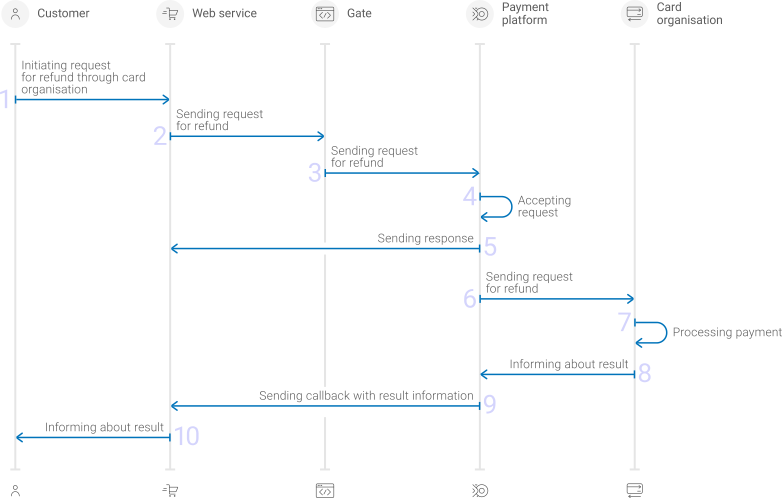
- A customer initiates a refund.
- The web service sends the request for performing the refund by using Gate to the specified Orchid URL.
- The payment platform receives the request.
- The payment platform validates the required parameters and signature in the request.
- The payment platform sends the response to the web service with information about the receipt of the request and its validity (details).
- The payment platform performs further processing of the request (with parameter consistency check) and sends it to the card organisation service.
- The refund is processed on the side of the card organisation service.
- The card organisation service sends the result notification to the payment platform.
- The payment platform sends the result callback to the web service.
- The customer receives the refund result information from the web service.
Information about the formats of requests and callbacks used for performing refunds by using the Google Pay method via Gate is presented further in this section. General information about working with the Gate API is presented in Interaction concepts.
Request format
There are several things you need to consider when sending refund requests by using the Google Pay method:
- To initiate each refund, send a separate POST request to one of the following endpoints:
- /v2/payment/googlepay/refund—when the service code of the method is specified as
etoken-googlein the callback containing information about a registered COF purchase - /v2/payment/card/refund—when the service code of the method is specified as
cardin the callback containing information about a registered COF purchase
- /v2/payment/googlepay/refund—when the service code of the method is specified as
- The following objects and parameters must be specified in any request:
- Object
general—general refund information:project_id—project identifier obtained from Orchid during integrationpayment_id—identifier of the payment that needs to be refundedpayment identifiersignature—request signature generated after all required parameters are specified (details—in the Signature generation and verification)
- Object
payment—refund information:description—refund description or commentamount—refund amount in the smallest currency unit (required for a partial refund)currency—refund currency code in the ISO-4217 alpha-3 format (required for a partial refund)
- Object
customer—customer information:ip_address—customer IP address relevant for the initiated refund
- Object
- Additionally, any other parameters included in the specification can be used.
Thus, a correct refund request by using the Google Pay method must contain the project and payment identifiers, description of the refund, the customer IP address, signature, and, if necessary, currency code and refund amount.
{
  "general": {
    "project_id": 210,
    "payment_id": "test_payment",
    "signature": "PJkV8ej\/UG0Di8hTng6JvipTv+AWoXW\/9MTO8yJA=="
  },
  "payment": {
    "description": "test refund",
    "amount": 1000,
    "currency": "USD"
  },
  "customer": {
    "ip_address": "192.0.2.0"
  }
}
{
  "general": {
    "project_id": 210,
    "payment_id": "test_payment",
    "signature": "PJkV8ej\/UG0Di8hTng6JvipTv+AWoXW\/9MTO8yJA=="
  },
  "payment": {
    "description": "test refund",
    "amount": 1000,
    "currency": "USD"
  },
  "customer": {
    "ip_address": "192.0.2.0"
  }
}
Callback format
The Google Pay method uses the standard format for callbacks to deliver refund results. For more information, see Handling callbacks.
The following is the example of a callback with an information about a 30,00 USD refund for the customer account 541333******0019 in the 208 project.
The service code of the payment method can be specified as etoken-google or card, depending on the purchase for which the refund is processed.
{
        "project_id": 208,
        "payment": {
            "id": "TEST_123456",
            "type": "purchase",
            "status": "refunded",
            "date": "2020-03-30T08:54:23+0000",
            "method": "etoken-google",
            "sum": {
                "amount": 0,
                "currency": "USD"
            },
            "description": "payment for 30.0 USD"
        },
        "account": {
            "number": "541333******0019",
            "type": "mastercard",
            "card_holder": "LEE OONG",
            "expiry_month": "09",
            "expiry_year": "2020"
        },
        "customer": {
            "id": "907680850"
        },
        "operation": {
            "id": 57299000036261,
            "type": "refund",
            "status": "success",
            "date": "2020-03-30T08:54:24+0000",
            "created_date": "2020-03-30T08:54:22+0000",
            "request_id": "122809a-c43c08a4b6ee7d73bfaaf7f",
            "sum_initial": {
                "amount": 3000,
                "currency": "USD"
            },
            "sum_converted": {
                "amount": 3000,
                "currency": "USD"
            },
            "code": "0",
            "message": "Success",
            "provider": {
                "id": 120,
                "payment_id": "353197036",
                "auth_code": "000000",
                "endpoint_id": 120,
                "date": "2020-03-30T08:54:23+0000"
            }
        },
        "signature": "8y41YTzCAy0N/mV+tkJmB6OsGYLUYAyAIp3U/3x7jymU...=="
    }
The following is the example of a callback with information about a declined refund.
{
        "project_id": 208,
        "payment": {
            "id": "TEST_1234567",
            "type": "purchase",
            "status": "success",
            "date": "2020-03-27T17:41:04+0000",
            "method": "etoken-google",
            "sum": {
                "amount": 2000,
                "currency": "EUR"
            },
            "description": "35121367"
        },
        "account": {
            "number": "541333******0019",
            "type": "mastercard",
            "card_holder": "LEE OONG",
            "expiry_month": "09",
            "expiry_year": "2028"
        },
        "customer": {
            "id": "LEE OONG"
        },
        "operation": {
            "id": 42809000016421,
            "type": "refund",
            "status": "decline",
            "date": "2020-03-27T17:41:04+0000",
            "created_date": "2020-03-27T17:41:03+0000",
            "request_id": "b869d91-ff913d9c5ae5ba1bb6c3457c30e91",
            "sum_initial": {
                "amount": 1400,
                "currency": "EUR"
            },
            "sum_converted": {
                "amount": 1400,
                "currency": "EUR"
            },
            "code": "10000",
            "message": "General decline"
        },
        "signature": "8ql4yC3p2RiYbNXN15+64voxMYBrBQJmcKmL...=="
    }
Useful links
The following articles can be useful when implementing refunds via Gate:
- Interaction concepts—about the interaction with the payment platform by using Gate.
- Signature generation and verification—about the procedure of generating and verifying signatures in requests and callbacks.
- Payment processing—about the types, processing models, and possible statuses of supported payments and operations.
- Purchase refunds—about performing of refunds by using Gate.
- Handling operation processing information—about error and response codes that are used in the payment platform to record information about performing of operations.
Payment card verification
General information
To perform a payment card verification through the Google Pay method, merchant's web service sends a request with all the required parameters and signature to Orchid URL, and receives a callback with the result. Payment card verification processing for this method is the same as standard processing sequence which is provided in the section Payment instrument verification.
Format of request for payment card verification
There are several things you need to consider when sending payment card verification requests by using the Google Pay method:
- To initiate each verification, send a separate POST request to the /v2/payment/googlepay/account_verification endpoint.
- Each request must include the following objects and parameters:
- Object
general—general purchase information:project_id—project identifier obtained from Orchid during integrationpayment_id—payment identifier unique within the projectsignature—request signature generated after all required parameters are specified (details—in the Signature generation and verification) (details)
- Object
payment—payment information:amount—payment amount in the smallest currency unitcurrency—payment currency code in the ISO-4217 alpha-3 format
- Object
customer—customer information:id—customer identifier unique within the projectip_address—customer IP address relevant for the initiated payment
etoken—token received from the Google Pay information:token—token received from the Google Pay after customer identification
- Object
- The payment amount must be zero.
- Additionally, any other parameters included in the specification can be used.
Thus, a correct purchase request by using the Google Pay method must contain the project identifier, basic payment information (identifier, amount, and currency code), customer identifier and IP address, Google Pay token information, as well as signature.
{
  "general": {
    "project_id": 238,
    "payment_id": "TEST_15427033321774",
    "signature": "96c+hWk1zweuGKwDRrl+DZrjJXZw7ew6ow3RpGYv4U...=="
  },
  "customer": {
    "ip_address": "192.0.2.0"
  },
  "payment": {
    "amount": 0,
    "currency": "USD"
  },
  "etoken": {
        "token": "..."
    }
}
{
  "general": {
    "project_id": 238,
    "payment_id": "TEST_15427033321774",
    "signature": "96c+hWk1zweuGKwDRrl+DZrjJXZw7ew6ow3RpGYv4U...=="
  },
  "customer": {
    "ip_address": "192.0.2.0"
  },
  "payment": {
    "amount": 0,
    "currency": "USD"
  },
  "etoken": {
        "token": "..."
    }
}
Callback format
The Google Pay method uses the standard format for callbacks to deliver results. For more information, see Payment instrument verification.
Useful links
The following articles can be useful when implementing purchases via Gate:
- Interaction concepts—about the interaction with the payment platform by using Gate.
- Signature generation and verification—about the procedure of generating and verifying signatures in requests and callbacks.
- Payment processing—about the types, processing models, and possible statuses of supported payments and operations.
- One-time one-step purchase—about processing of one-time one-step purchases by using Gate.
- Handling operation processing information—about error and response codes that are used in the payment platform to record information about performing of operations.
Testing
General information
For the Google Pay method, it is possible to test one-step and two-step purchases by using Payment Page and Gate, as well as payment card verification by using Gate. To enable and disable testing, as well getting assistance with setting up a test project, refer to Orchid technical support.
When performing a test payment, take into account that you must specify the identifier of the test project in the requests, and the interfaces of the payment forms emulator of Payment Page and the 3‑D Secure 2 authentication page may differ from the production environment. At the same time to process a test payment it is necessary to use verified payment cards previously registered in the Google Pay service. This does not influence the processing of real payments by using such cards, but allows to perform full-fledged testing. In order to test purchases by using Gate it is necessary to prepare the web-service for interaction with the Google service (more information is presented in the section One-time purchases by using Gate).
Statuses of test payment and operations
The final status of test payments and operations is determined by the amount specified in the request.
Test one-step and two-step purchases:
1000amount to get thesuccessstatus2000,5000or10001amount to get thedeclinestatus
Test payment card verification:
0amount to get thesuccessstatus- any other amount to get the
declinestatus
One-step purchases by using Payment Page
To perform a test one-step purchase by using Payment Page, do the following:
- Send a correct test request for Payment Page opening to the payment platform.
- If the
cardorgoogle_pay_hostmethod was not specified in the request—select the method on the emulator page. - If the authentication page is displayed pass the 3‑D Secure 2 authentication.
- Receive the final callback with information about the payment result.
More information about processing purchases by using the Google Pay method via Payment Page is provided in the One-time purchases by using Payment Page section.
One-step purchases by using Gate
To perform a test one-step purchase by using Gate, do the following:
- Send a correct test request for purchase to the payment platform.
- If you receive the callback with the 3‑D Secure 2 authentication redirection data:
- Perform the redirection and pass the 3‑D Secure 2 authentication.
- Send the payment completion request. It is required to use the cres parameter and specify the following value in the request:
ewogICAiYWNzUmVmZXJlbmNlTnVtYmVyIiA6ICJBQ1NFbXUyIiwKICAgImFjc1RyYW5zSUQiIDogIjAwMDAwMDAwLTAwMDUtNWE1YS04MDAwLTAxNmRiNjMzNzZlYiIsCiAgICJtZXNzYWdlVHlwZSIgOiAiQ1JlcyIsCiAgICJtZXNzYWdlVmVyc2lvbiIgOiAiMi4xLjAiLAogICAidGhyZWVEU1NlcnZlclRyYW5zSUQiIDogIjZmMmM3OGFkLTFjOWMtNTI2ZC04MDAwLTAwMDAwMDAwMTA2YiIsCiAgICJ0cmFuc1N0YXR1cyIgOiAiWSIKfQ
- Receive the final callback with information about the payment result.
More information about processing purchases by using the Google Pay method via Gate is provided in the One-time purchases by using Gate section.
One-step purchases by performing authorization hold via Payment Page and capture or cancellation via Gate
To perform a test one-step purchase by performing authorization hold via Payment Page and capture or cancellation via Gate, do the following:
- Send a correct test request for Payment Page opening to the payment platform.
- If the
cardorgoogle_pay_hostmethod was not specified in the request—select the method on the emulator page. - If the authentication page is displayed pass the 3‑D Secure 2 authentication.
- Accept a callback with information about successful authorization hold.
- Send a capture or cancellation request.
- Receive the final callback with information about the result.
More information about processing purchases by using the Google Pay method via Gate is provided in the One-time purchases by using Payment Page and One-time purchases by using Gate sections.
One-step purchases by performing authorization hold and capture or cancellation via Gate
To perform a test one-step purchase by performing authorization hold and capture or cancellation via Gate, do the following:
- Send a correct test request for Payment Page opening to the payment platform.
- If you receive the callback with the 3‑D Secure 2 authentication redirection data:
- Perform the redirection and pass the 3‑D Secure 2 authentication.
- Send the payment completion request. It is required to use the cres parameter and specify the following value in the request:
ewogICAiYWNzUmVmZXJlbmNlTnVtYmVyIiA6ICJBQ1NFbXUyIiwKICAgImFjc1RyYW5zSUQiIDogIjAwMDAwMDAwLTAwMDUtNWE1YS04MDAwLTAxNmRiNjMzNzZlYiIsCiAgICJtZXNzYWdlVHlwZSIgOiAiQ1JlcyIsCiAgICJtZXNzYWdlVmVyc2lvbiIgOiAiMi4xLjAiLAogICAidGhyZWVEU1NlcnZlclRyYW5zSUQiIDogIjZmMmM3OGFkLTFjOWMtNTI2ZC04MDAwLTAwMDAwMDAwMTA2YiIsCiAgICJ0cmFuc1N0YXR1cyIgOiAiWSIKfQ
- Accept a callback with information about successful authorization hold.
- Send a capture or cancellation request.
- Receive the final callback with information about the result.
More information about processing purchases by using the Google Pay method via Gate is provided in the One-time purchases by using Gate section.
Payment card verification by using Gate
To process a test payment card verification by using Gate, send a valid test request for a verification to the payment platform and receive a final callback with information about the verification result. More information about performing payment card verification by using the Google Pay method via Gate is provided in the Payment card verification section.
Analysis of payments results
To analyse information about payments made with the Google Pay method and other methods, you can use:
- Dashboard interface toolkit with various lists and analytic panels.
- Reports in CSV file format, available via the Reports section (one-time and periodically).
- Data in JSON format, sent by program requests to a specified URL available by using the Data API interface.
If you have any questions, refer to the documentation (Dashboard and Using Data API) and Orchid technical support.